What are Add-ons and what functionalities do they include?
Add-ons is a new feature in Elorus that allow you to enable additional functionalities tailored to your business needs.
You can install or uninstall Add-ons at any time through the application. To get started, go to the main menu and click Settings > Add-ons.
In the Add-ons section, you will find the following features:
- Delivery Notes
- Extra users
- Cheques
- Recurring Payments Received
Delivery notes
This add-on allows your business to easily create and manage delivery notes directly in Elorus.
-
To issue delivery notes through Elorus, a paid subscription is required.
-
This feature is available for an additional fee of €2/month. To enable it, go to the main menu and click Settings > Add-ons > Install.
For more information on how to issue delivery notes, please visit the related page.
Extra users
This add-on allows you to add more users to your organization, each with their own login credentials.
When you click Install, a pop-up window will appear, allowing you to select the number of additional users you wish to add. Elorus will automatically display the corresponding additional cost.
Once the new users have been added, you can send them invitations by following the steps outlined in this article.
Cheques
If your business handles post-dated cheques, you may enable this add-on to:
- Add both Incoming and Outgoing cheques.
- Track payments: which ones are pending and which have been cleared.
- Link checks to relevant sales or purchase documents.
To activate the Add-on for both cheque types (Incoming & Outgoing), go to Settings > Add-ons from the main menu and click Install.
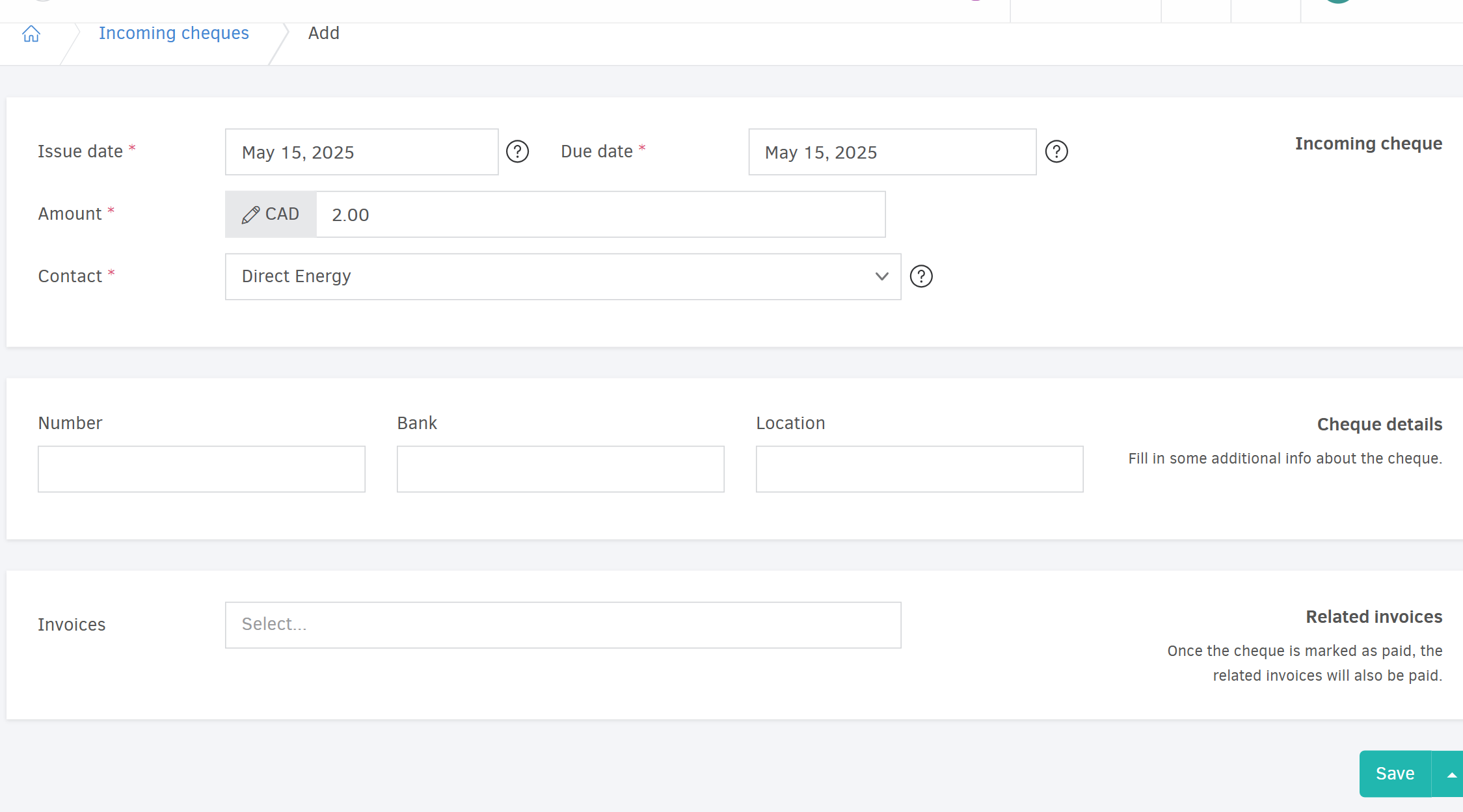
Once the add-on is installed, two submenus options will appear under ...More: Incoming cheques & Outgoing cheques. To add a check, select the relevant submenu and click Add to open the entry form.
Recurring payments received
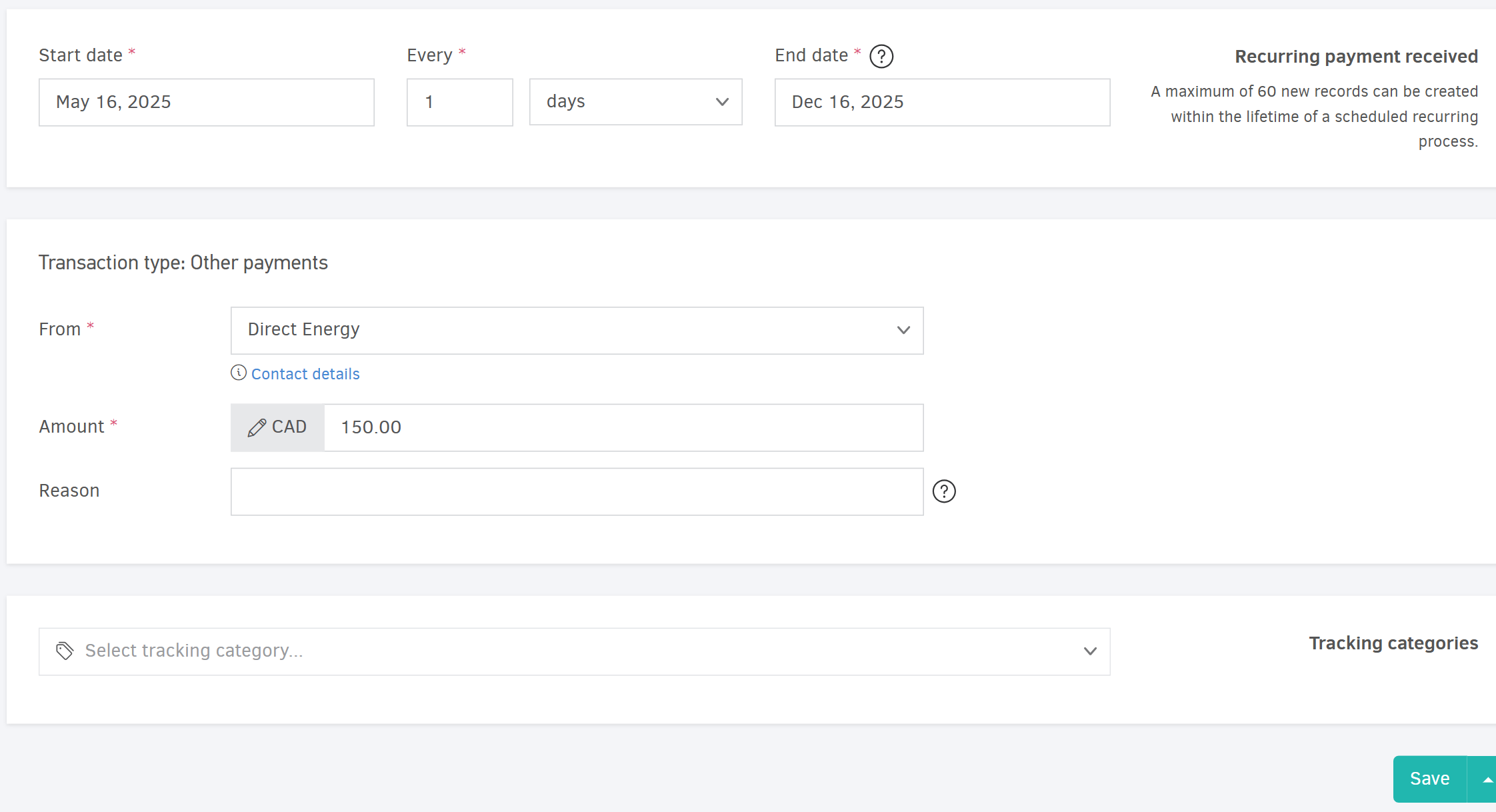
This add-on allows you to create recurring payments received records similar to Recurring invoices.
To enable this add-on, go to Settings > Add-ons in the main menu and click Install.
Once installed, you can create a recurring payment received by navigating to ...More > Recurring payments received > Add.