

When you create your organization in Elorus, the most commonly used taxes (VAT and withholdings) are activated automatically.
In addition to the available taxes, you can add new ones based on your needs.
You can apply taxes to:
- Invoices, Estimates, etc.
- Expenses or Bills
- Products/Services added to a document.
To add or manage taxes, go to Settings > Taxes from the main menu.
Using taxes during invoicing
VAT
When creating an invoice, VAT classification is required for submitting the document to myDATA. VAT is applied exclusively as line taxes, and it is calculated on the net value of each product or service.
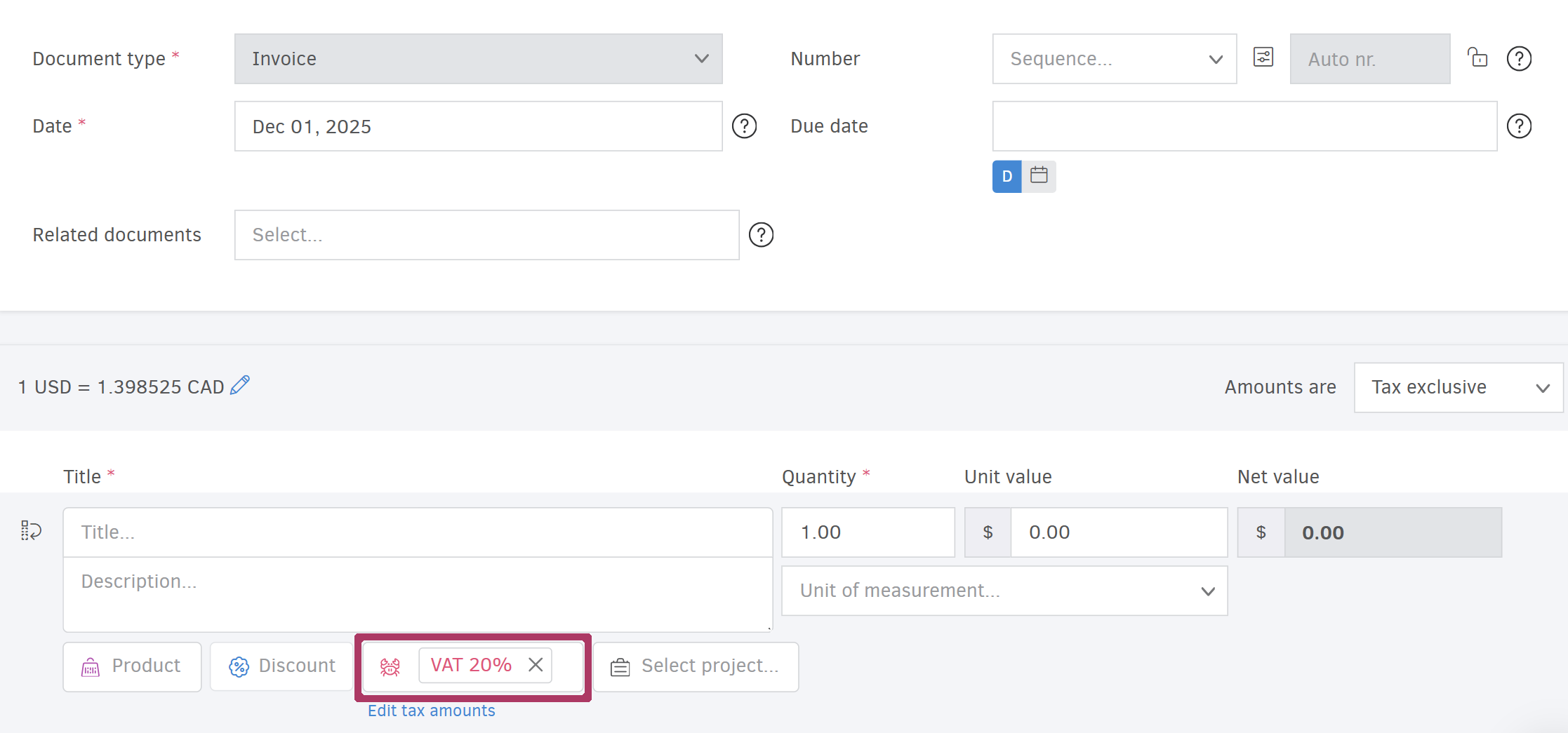
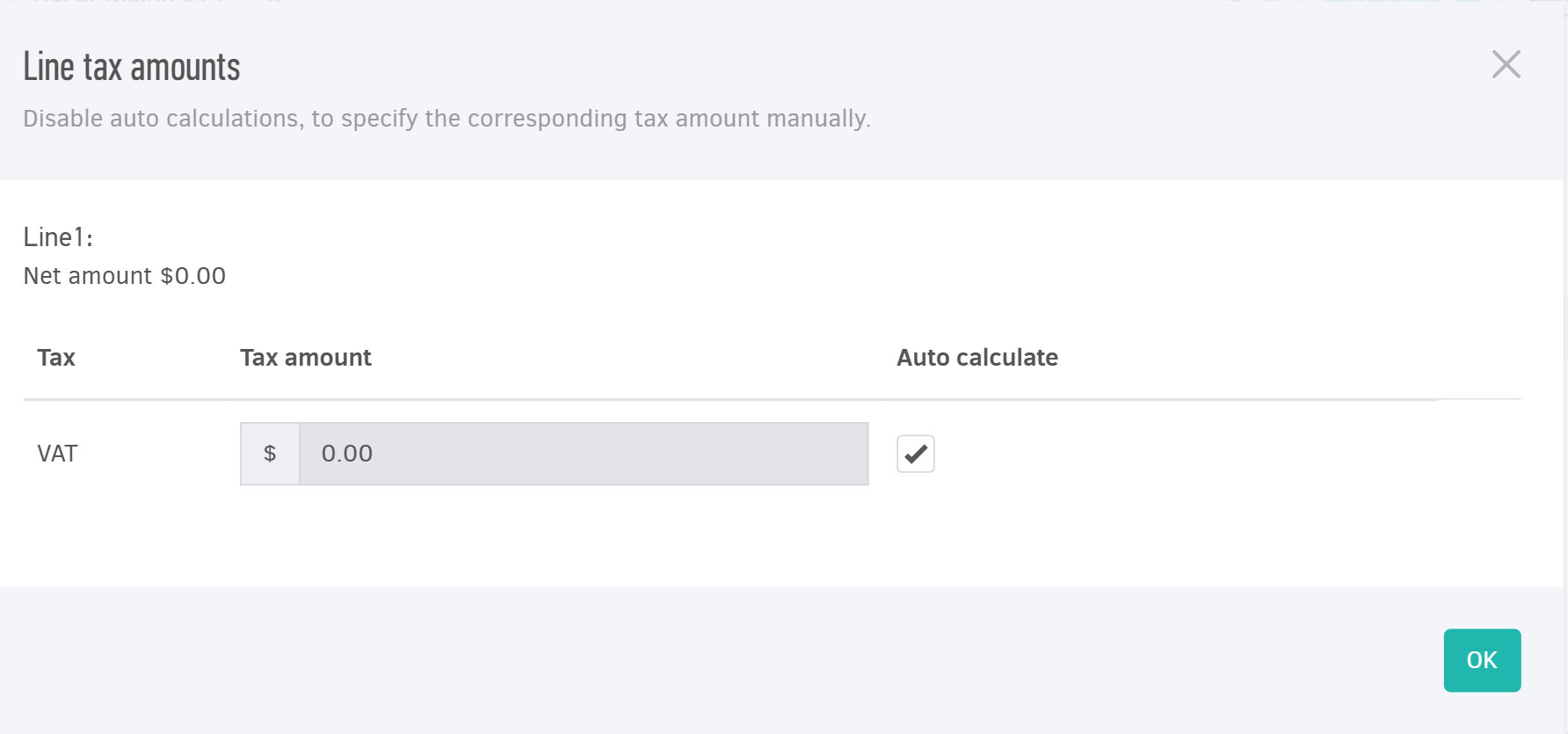
You can modify the VAT amount—just like any other line tax—by selecting Edit tax amounts. In the pop-up window, disable Auto calculate field and enter the tax amount manually.
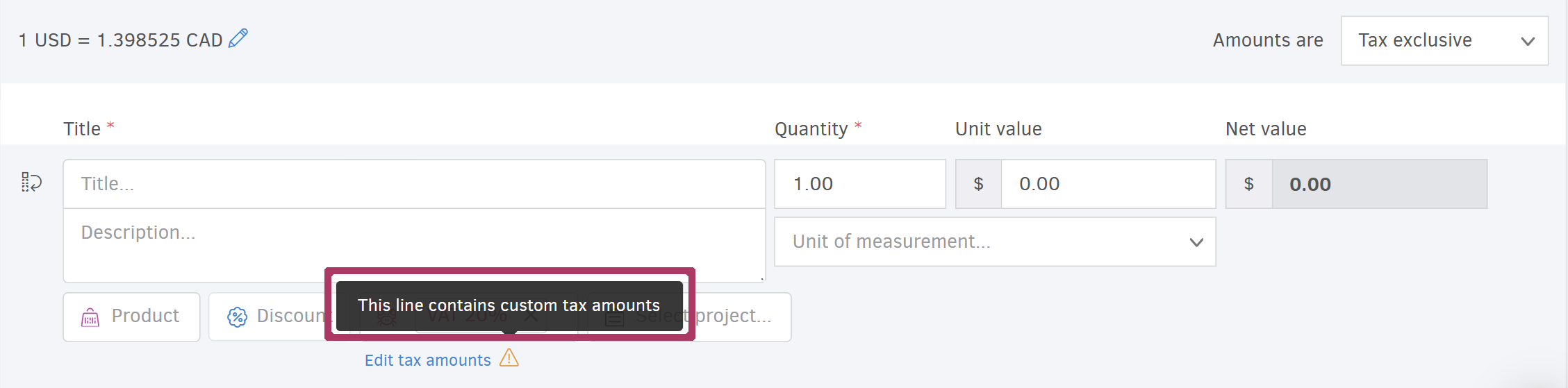
When this is done, Elorus displays an indicator showing that the tax amount has been edited manually.
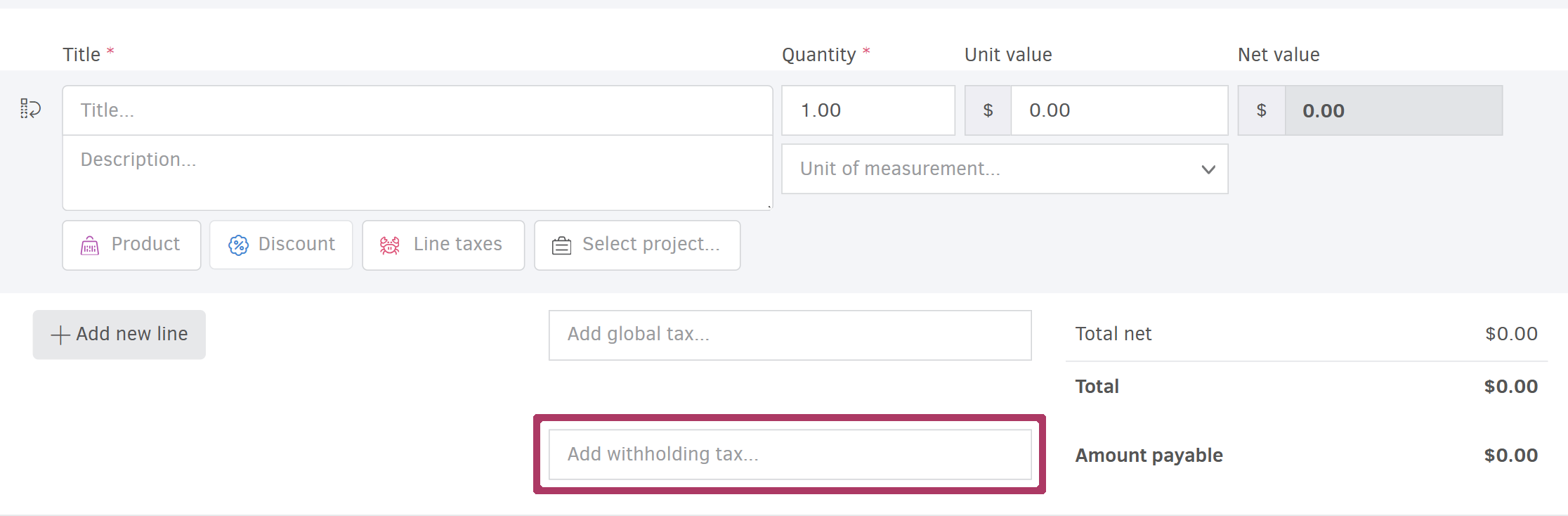
Withholding taxes
Withholdings and deductions are applied as global taxes on the document total, provided they apply to all invoice lines.
Once you add a tax as a global tax, Elorus automatically calculates its amount. However, you can edit it by clicking the lock icon, as shown in the example below.
.png)
You can add multiple withholdings and deductions and choose whether each amount should be calculated automatically by Elorus or entered manually. If you enter an amount manually, Elorus will adjust the total tax amount accordingly.
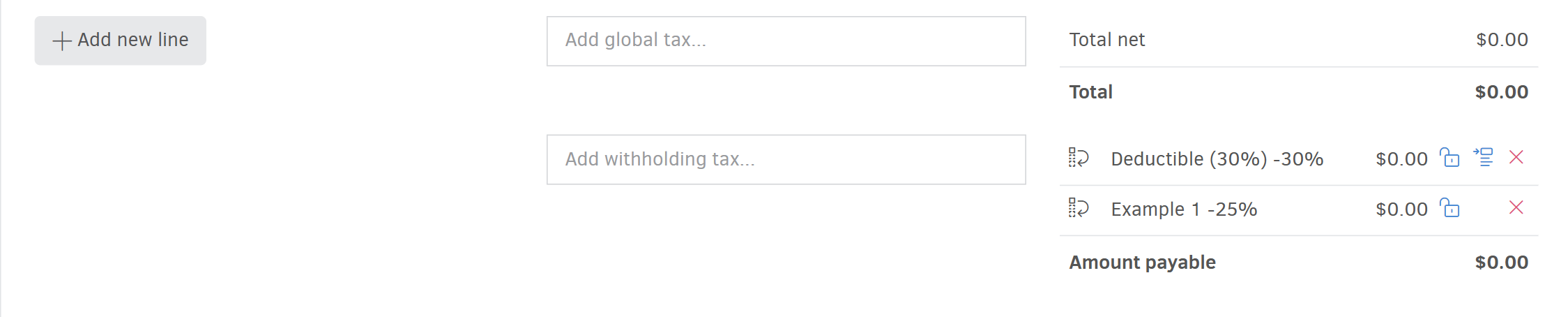
Automatic tax calculation is applied when the tax value is set as a percentage or a fixed amount. If the tax is defined as a variable amount, you must enter its value manually each time, since it differs from case to case.
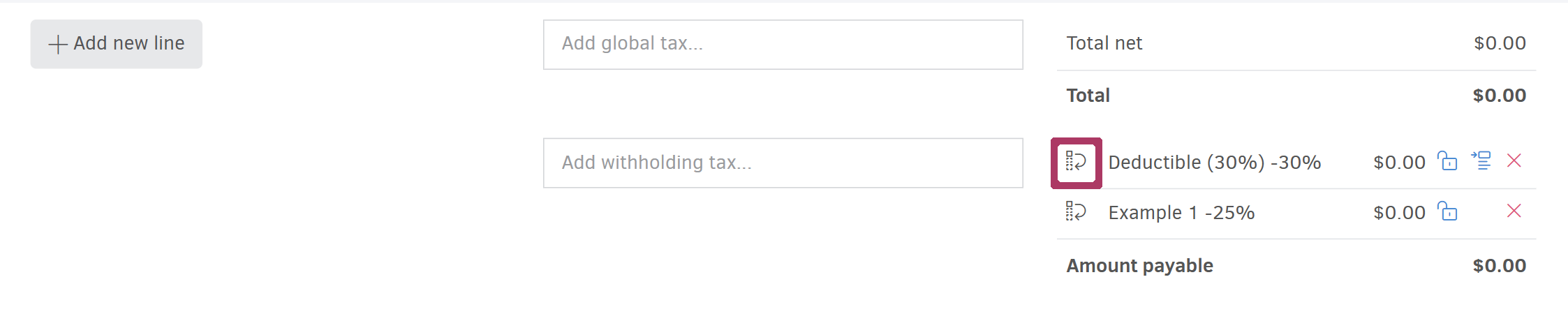
By dragging the corresponding widget up or down, you can adjust the tax order, which also determines how they appear on the printed version of the document.
If a withholding is calculated based on the amount that results after another withholding has been applied—rather than on the net value—you should use subtotals.
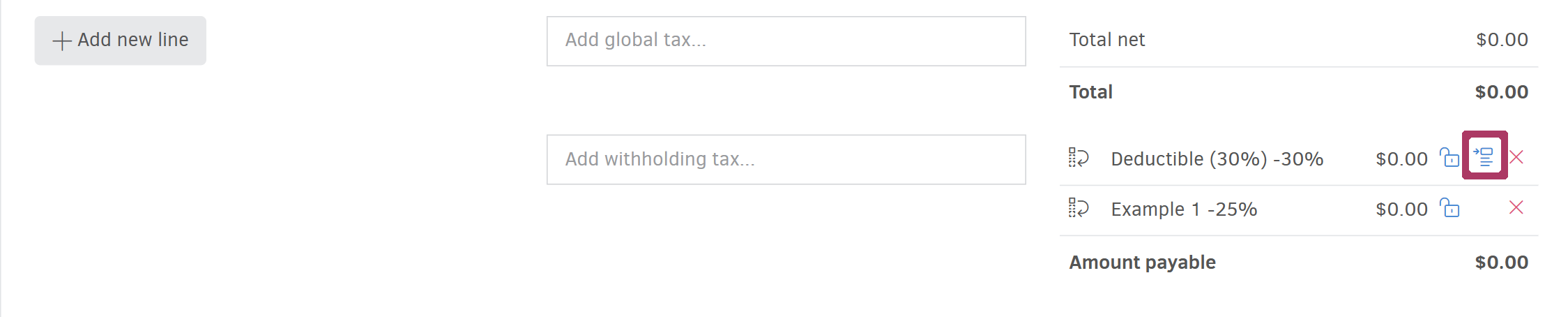
By clicking the corresponding widget, as shown in the image above, the related subtotals will appear.
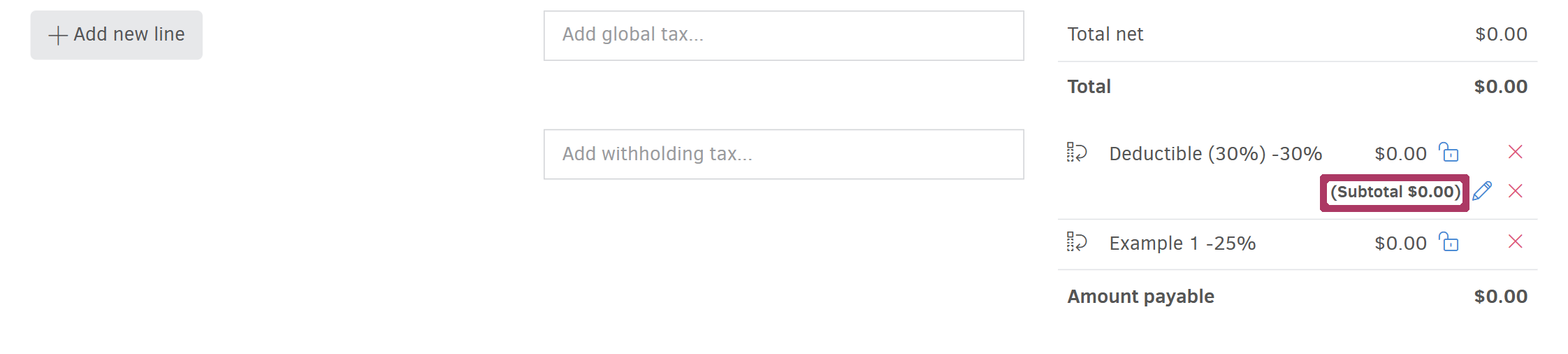
By using the pencil icon next to each subtotal, you can choose to exclude all previously applied withholdings or only the specific withholding.
If a withholding applies only to part of the document, it can also be added as a Line tax, provided that the Let me apply this tax on the document lines as well option was enabled when creating or editing the tax.
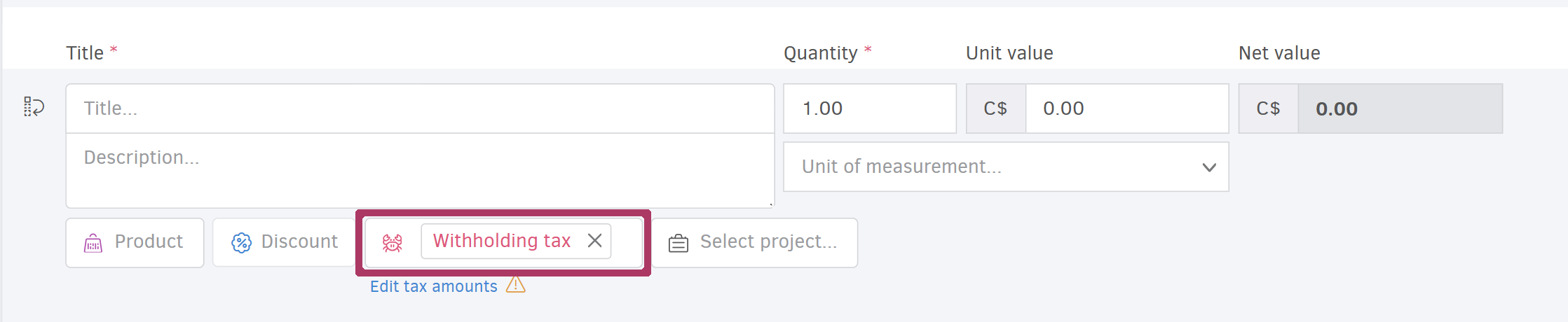
If you want to remove one or more taxes, click the delete x icon located next to the lock.
Simple taxes
These taxes can be applied either as line taxes or as a global tax on the document total.
If they are applied as line taxes along with other taxes (e.g. VAT), you may edit each tax amount individually using the same steps described earlier.
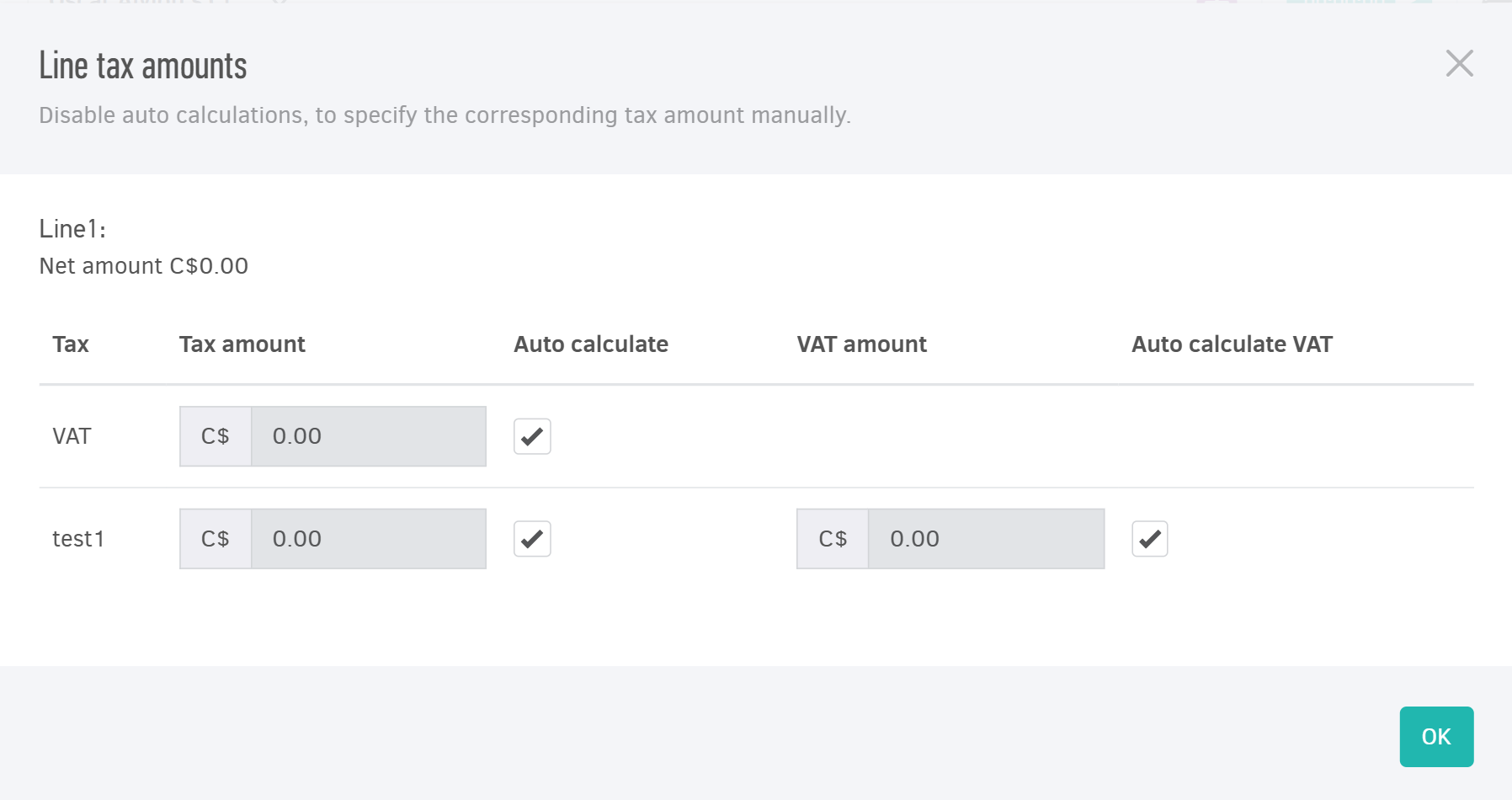
If a simple tax is subject to VAT, you can edit both the amount of the tax itself and the VAT applied to it, as shown in the example above.
Taxes that are subject to VAT must be added as line taxes, so they can be correctly associated with the VAT calculated on that tax.
If such taxes are added as global taxes, they must apply to all invoice lines.
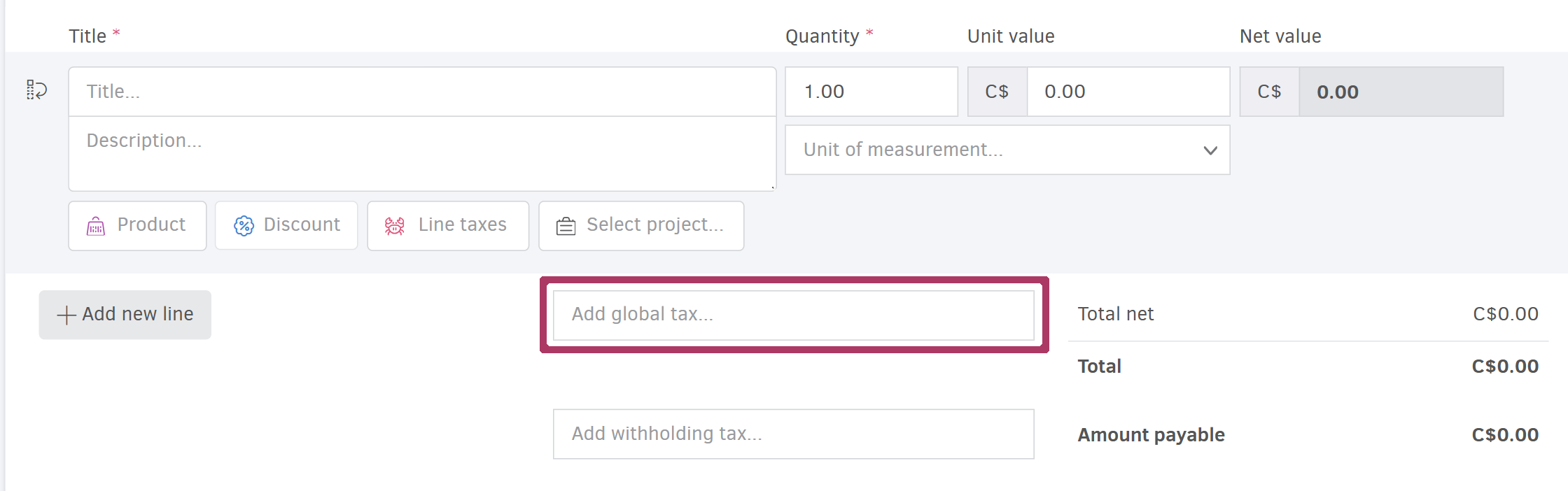
Similar to withholding taxes, you can set the amount of a simple tax manually, delete it, add multiple taxes and adjust its order.
Default taxes
Per contact
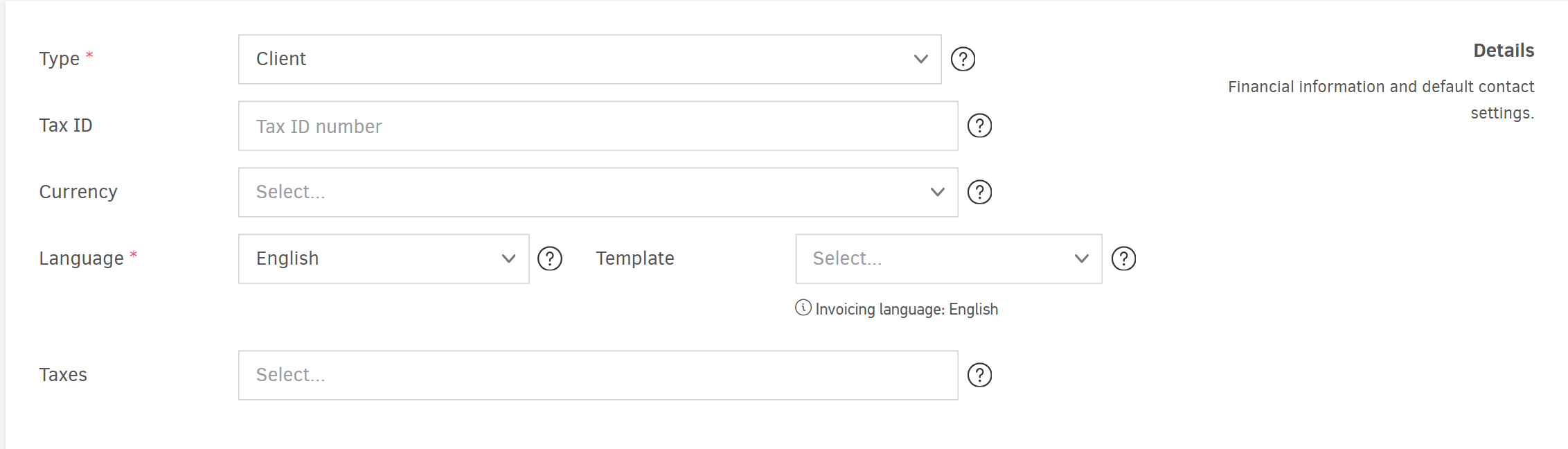
When adding or editing a contact, you can set a default tax that will be applied whenever you issue documents to that client.
Per product / service
When adding or editing a product or service, you can set a default tax that will be applied when issuing sales or purchase documents that include it.
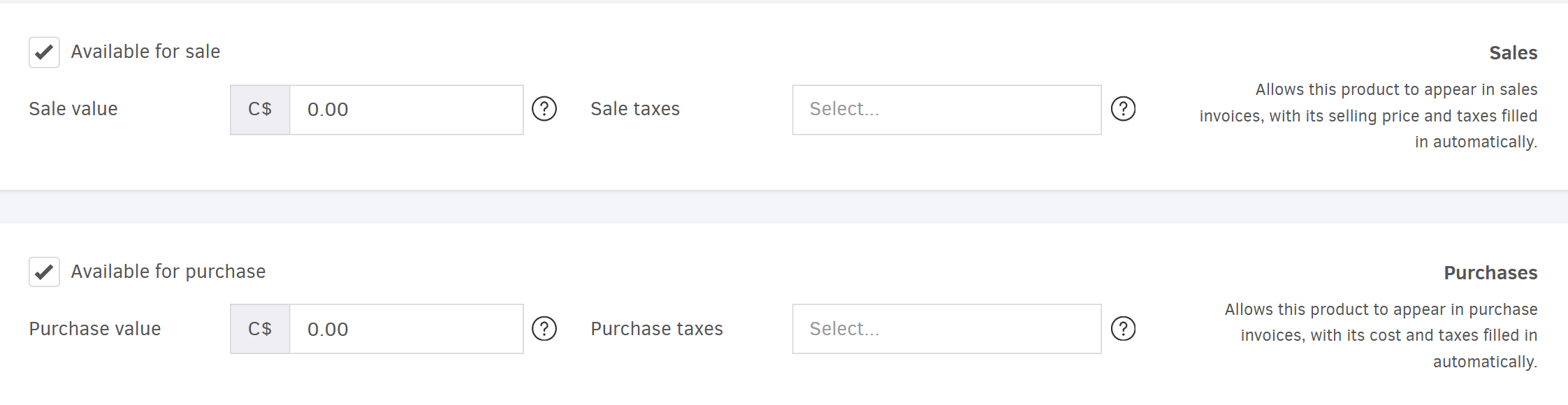
When invoicing inventory items it is possible to have default taxes set on both the contact and the product. Contact taxes always have a higher priority, so in this case the item’s tax will not be used.