
Stock management can be activated for your organization's products, provided that there is at least one Warehouse available. Warehouse creation, as well as management, is possible by navigating from the main menu under Settings > Warehouses.
An organization may need multiple Warehouses, especially in cases where the business keeps stock at multiple locations, or when an internal transportation of goods between warehouses is required.
The Multiple Warehouses feature is available with select subscriptions.
Creating a Warehouse
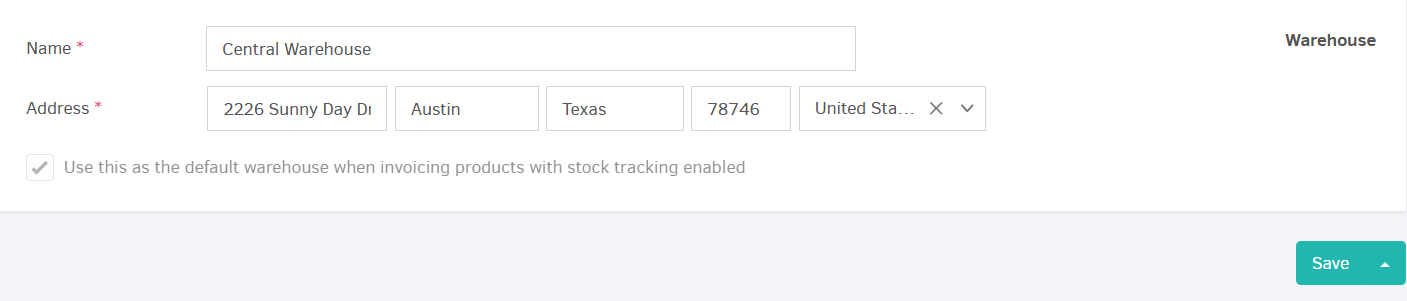
Once in the Warehouses section, you can add a Warehouse by clicking on the Add button, located in the top-right corner of the page. A pop-up window will come up, requiring the following details to be filled out:
Name
The name of the Warehouse. This field is important, especially if your organization has more than one warehouses.
Address
The full street address where the Warehouse is located.
In case of multiple warehouses, you have the option of selecting the default one by checking the Use this as the default warehouse when invoicing products with stock tracking enabled checkbox. This means that this particular warehouse will appear by default when a new invoice / credit note is created.
Editing a Warehouse
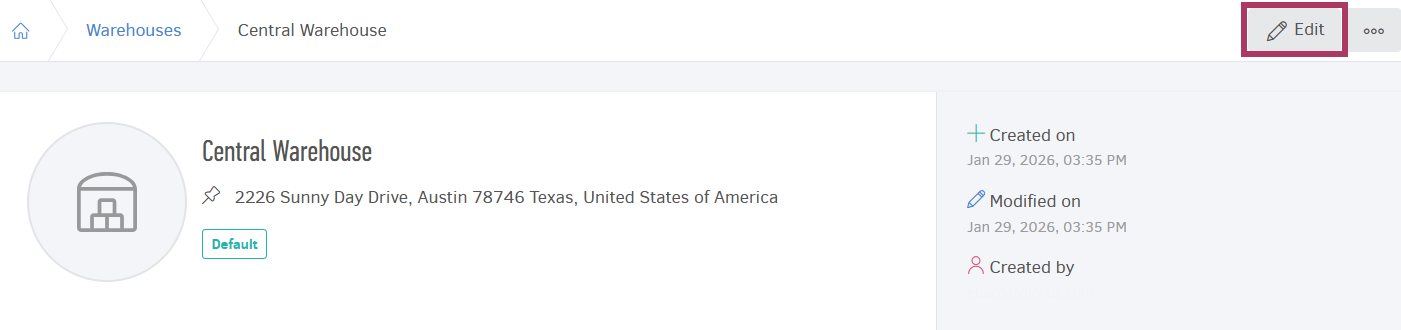
Warehouse details (Name, Address) can be altered anytime, by accessing the warehouse's display page and clicking on the Edit button.
Deleting or Archiving a Warehouse
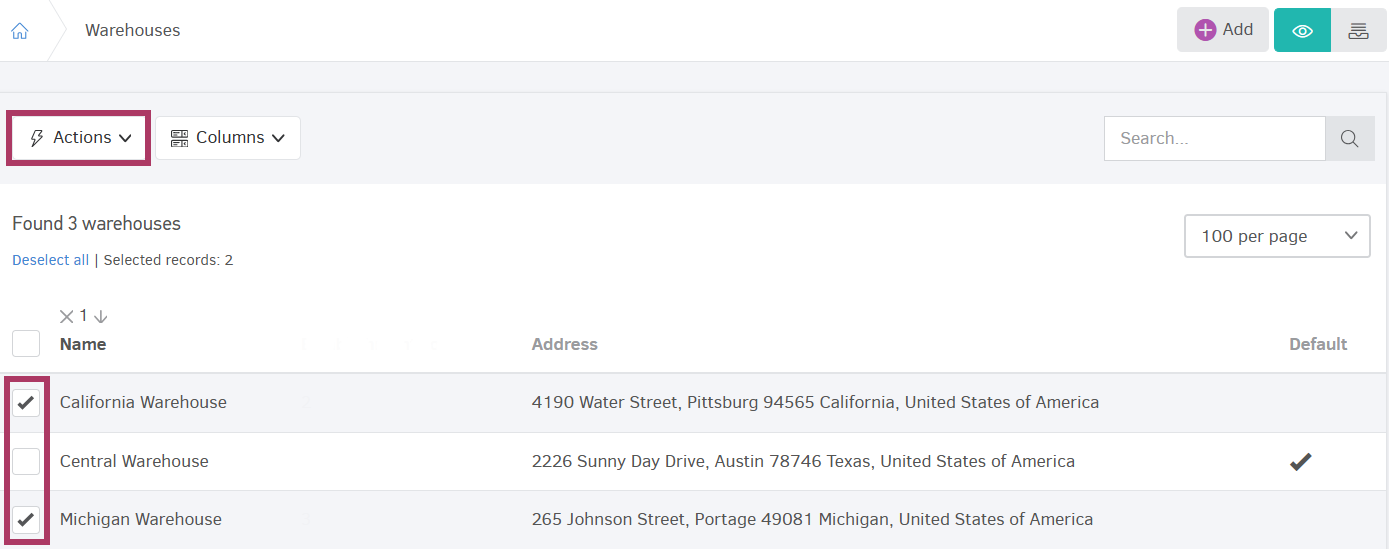
To delete a Warehouse, open the Warehouses overview page, select the Warehouse you wish to remove, then click on Edit > Delete.
It is also possible to delete multiple warehouses at once, by checking the corresponding checkboxes, then selecting Actions > Delete selected.
A Warehouse can only be deleted if the following prerequisites are met:
- There are no products or relevant stock within the warehouse.
- The warehouse is not correlated with an invoice / credit note or delivery note.
If the above conditions are not met, you could Archive the warehouse instead. An archived warehouse will no longer appear among the active ones, however it will retain its entire movement history. An archived warehouse can always be reactivated if needed.
Stock management in multiple warehouses
All products that have been created for your organization will be displayed under the Products section, regardless of the warehouse they have been assigned to. You can click on a product to view more details about its stock and transaction history.
Viewing the product's stock
The initial overview page of a product will display the total stock, the sale/purchase value, as well as the product's transaction history. Viewing the product's stock per warehouse is possible, by selecting the option Stock per warehouse.
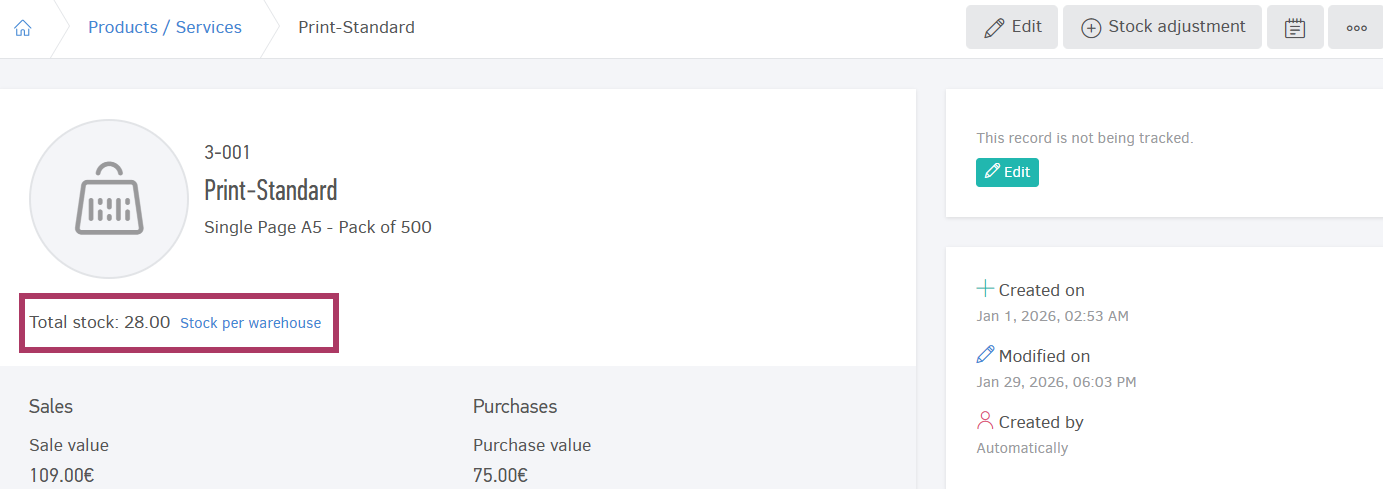
A product's stock is available if the Manage stock option has been activated. Please visit the Stock management section for more details.
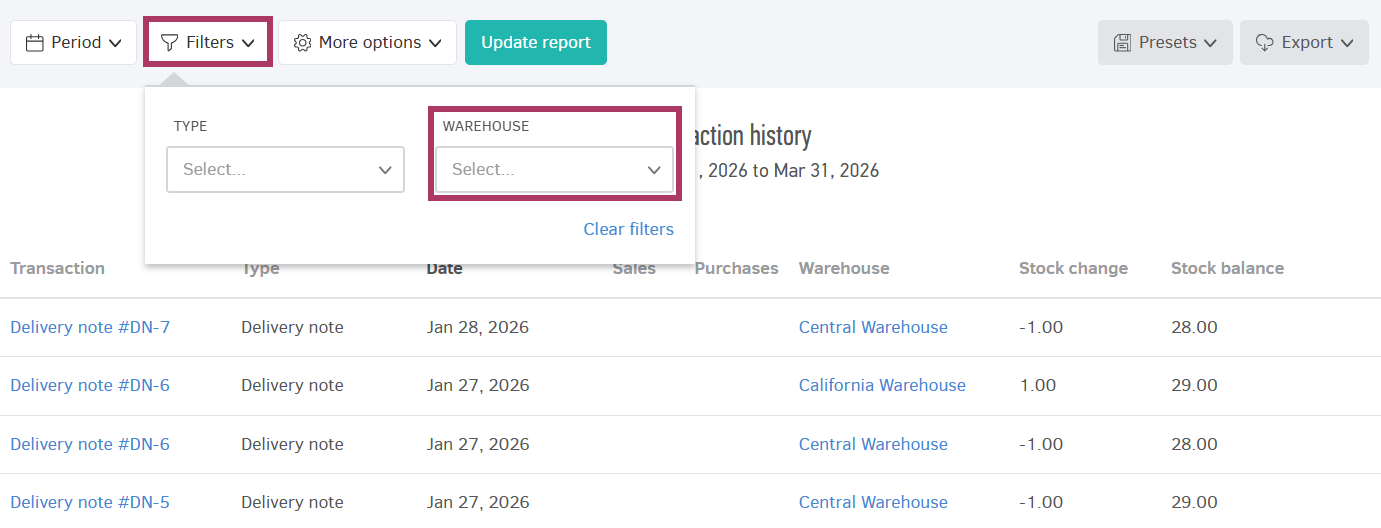
The product's transaction history (for every warehouse) can be found at the bottom-half of the page. You can use the Filters option to filter out results for a specific warehouse.
Viewing the product's stock during invoicing
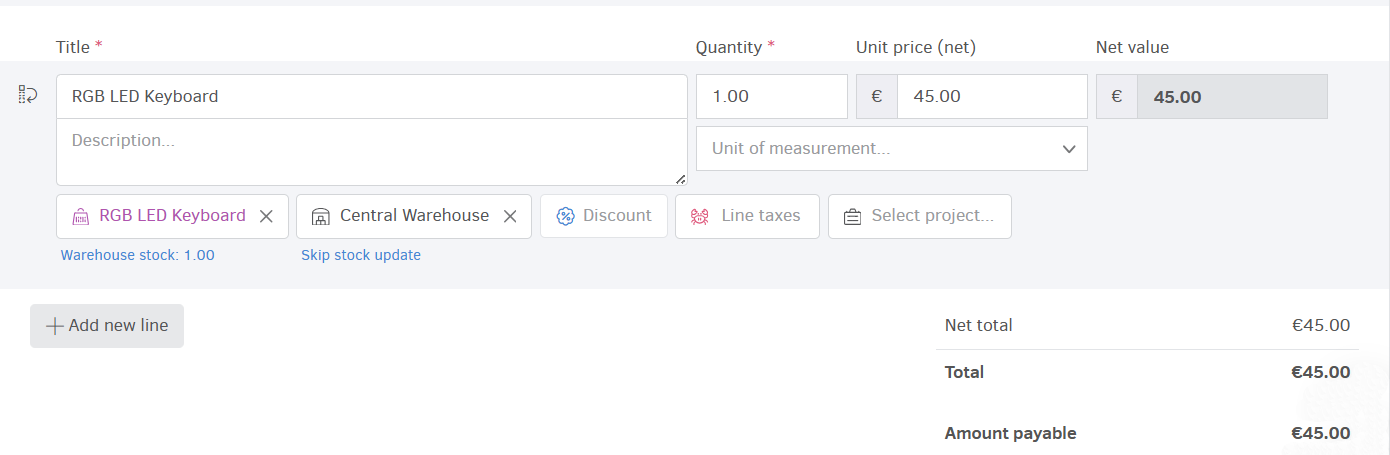
For your convenience, you may also view the product's stock during invoicing, as long as the Product and the corresponding Warehouse have been selected from the relevant fields.
Stock adjustment
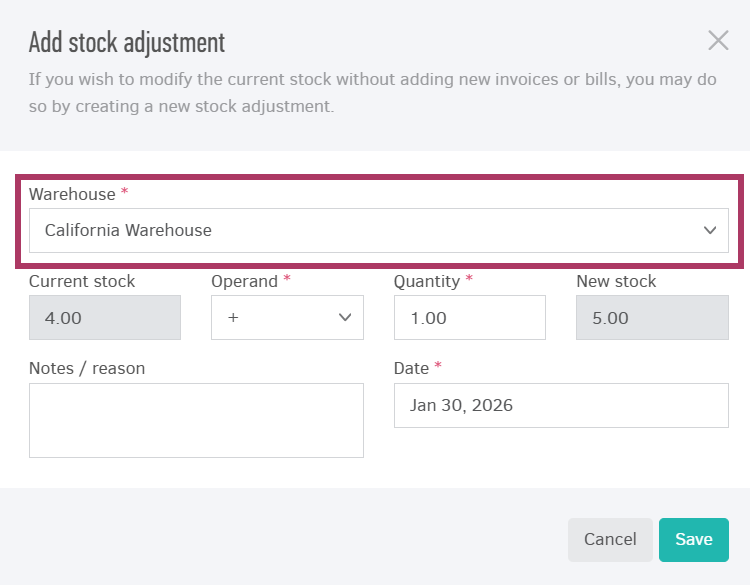
The product inventory for each warehouse can be altered either by creating a document (invoice, bill, delivery note), or by changing the stock manually via the Stock adjustment option from the product's overview page. In the case of a manual stock adjustment, you will be asked to define the warehouse in the relevant field.
Warehouse definition in documents
If the Manage stock option is enabled for your products, you will notice that additional fields appear in the document creation form.
Warehouse definition in Invoices / Bills
The Warehouse selection field appears in Invoices and Bills, so you can specify the warehouse from which the stock will be removed/added.
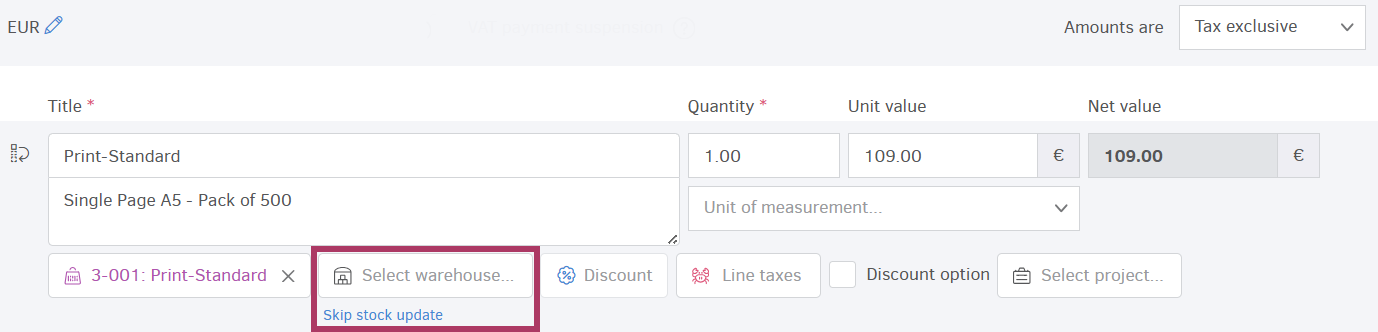
This field is mandatory. If you do not wish to record any inventory changes, you can select Skip stock update.
Warehouse definition in Delivery notes
As with Invoices / Bills, Delivery notes also require a warehouse selection, in order to specify the warehouse from which the inventory change will be recorded.
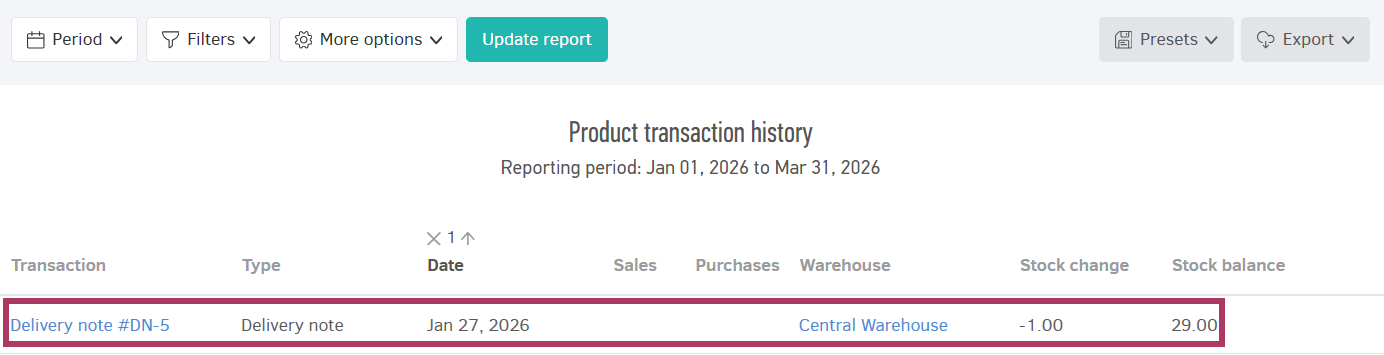
In the example below, we have created a delivery note that contains one product. After the delivery note has been issued the stock will be reduced in the warehouse, as the product has now departed from the warehouse and is being moved toward the customer.
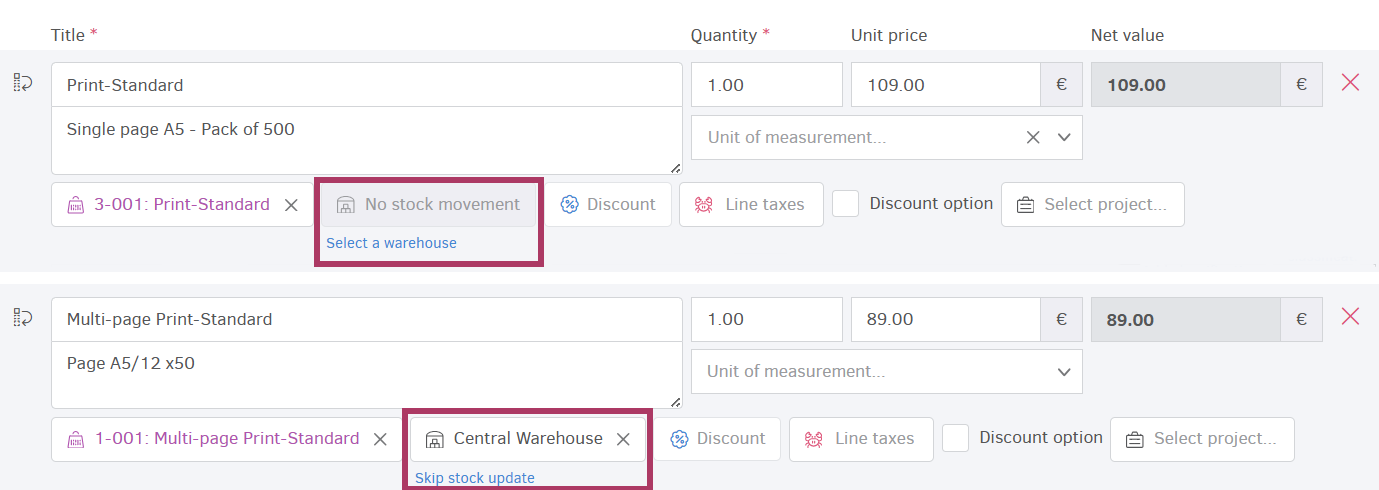
Once you are ready to issue the relevant invoice, it is advisable to create it from within the Delivery note's page, by clicking on the icon with the 3 dots > Create invoice. This way, the stock will not be subtracted twice from the warehouse (the indication No stock movement will be displayed).

At this stage you could add more products and define the warehouse from which the stock will be removed.
Internal Delivery notes
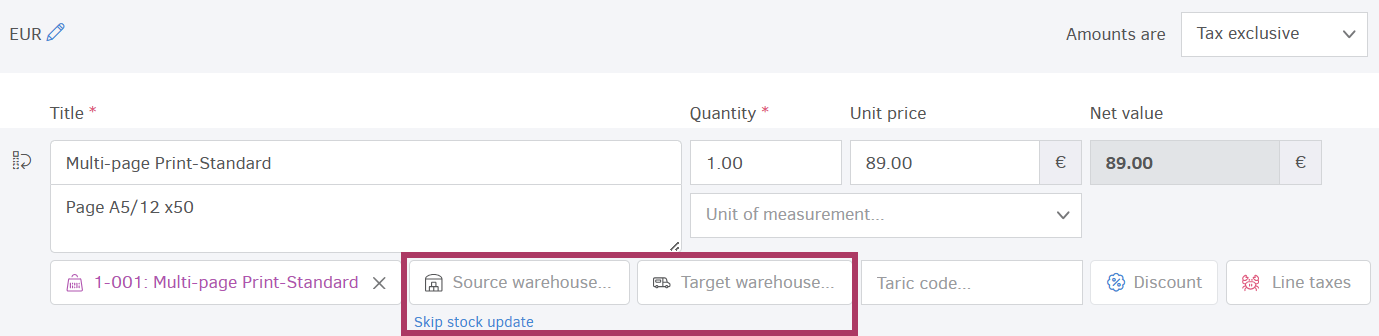
In the case of internal Delivery notes, the fields Source warehouse and Target warehouse will become mandatory.
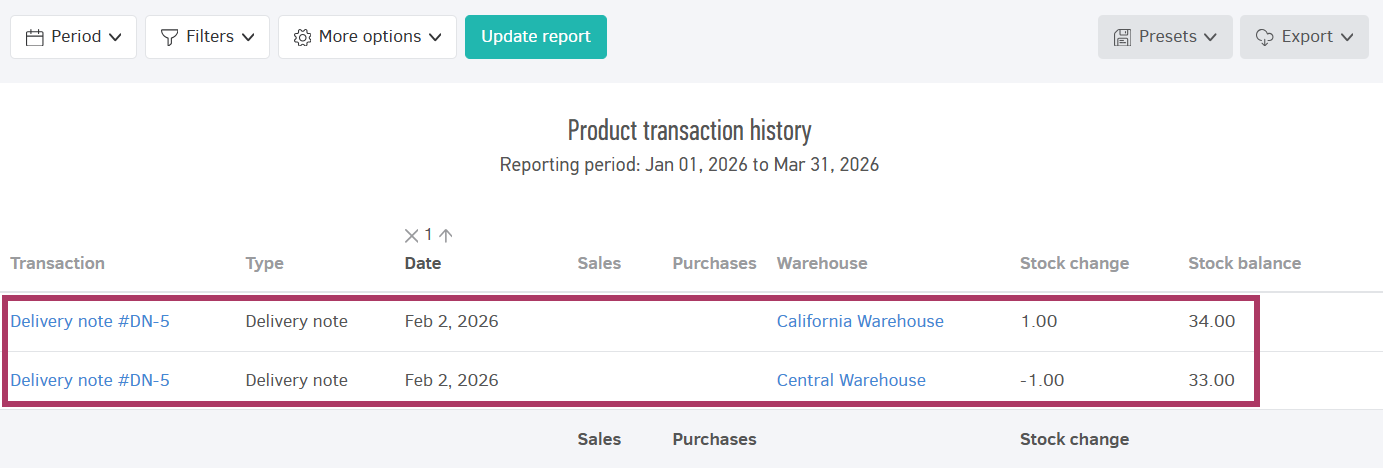
Stock movement will be displayed within the product's transaction history.
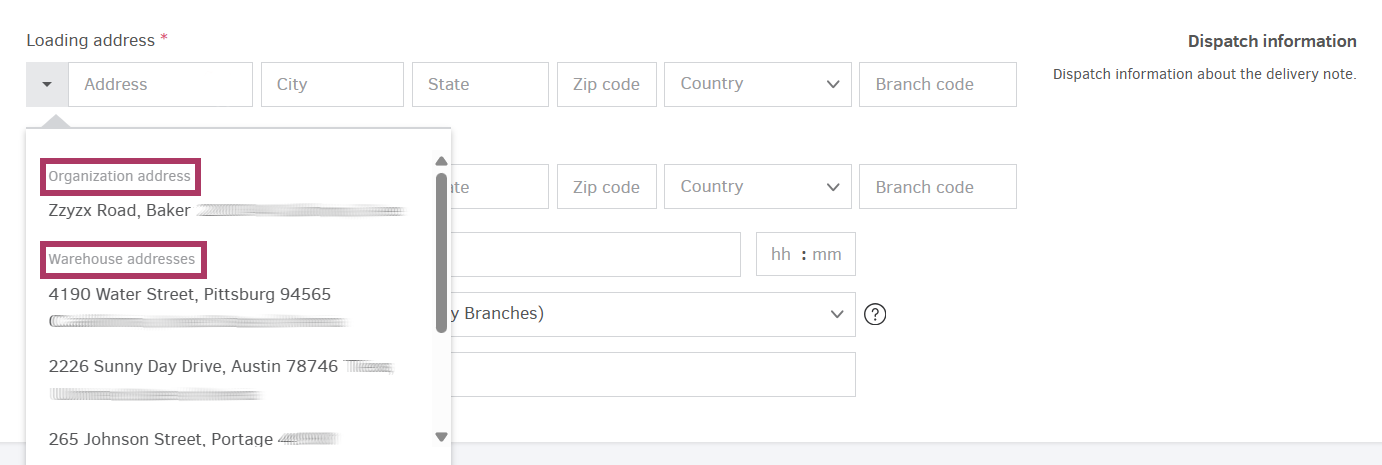
When creating an internal Delivery note, you will also notice that both the Organization address, as well as any available Warehouse addresses will be automatically displayed.
Reports
You can monitor the product stock for each Warehouse individually at any time by navigating from the main menu under Reports > All Reports > Product Stock.
Warehouses are displayed as horizontal tabs, as shown in the image below:

For more information on Reports, please visit this article.