Elorus supports three calculation methods for Invoices and Bills to match your organization's workflow.
Tax exclusive: The user enters the unit price (net price); taxes and discounts are calculated separately.
Tax inclusive, after discounts: User enters the final unit price, with taxes and discounts already included.
Tax inclusive, before discounts: User enters the gross unit price (including tax); discounts are then applied separately.
These settings can be configured globally for your organization, or overridden on individual documents as needed.
Setting up a default calculator mode for your organization
Based on your workflow, you may configure how values are calculated globally for your organization, from the main menu under Settings > Application settings > Amounts are.
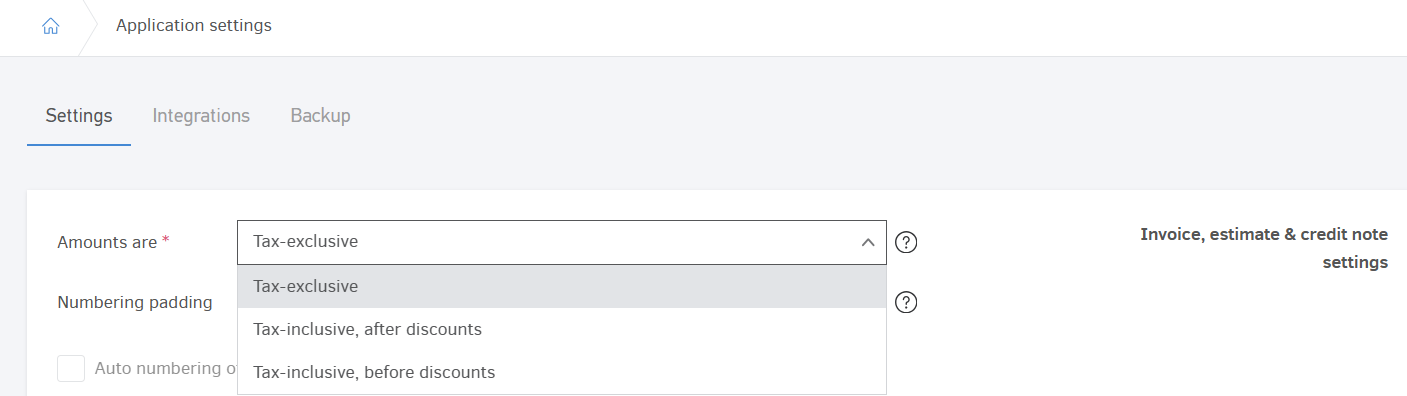
This setting will be applied as a default for all documents, yet you may change it for individual documents if needed.
Setting up a calculator mode for individual documents
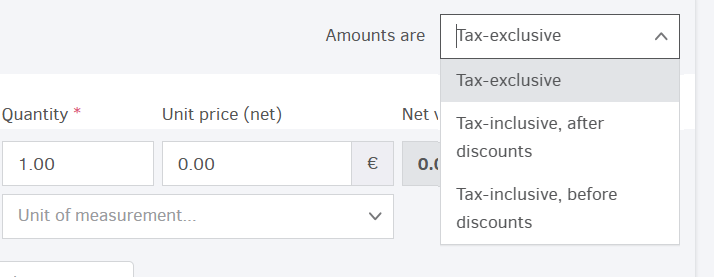
It is possible to set up a calculator mode for an individual document in its creation/editing page, by selecting the relevant option in the field "Amounts are", located on the top-right corner, above the item lines.
Calculation examples
First, we will calculate the values of a document that contains a single product/service in quantity of 10, based on its gross unit price (after tax), and afterwards we will calculate the values of the document for the same product/service in the same quantity, but based on its net unit price (before tax). The tax is set at 24% VAT.
The following examples do not involve discounts; please visit section Calculation examples involving discounts for more information on discount calculation.
Calculating values as tax inclusive (before/after discounts)
Suppose you know the gross price of the product, which is equal to €12.40, and you want to apply VAT at a rate of 24%. The value for this specific product/service is shown in the image below.
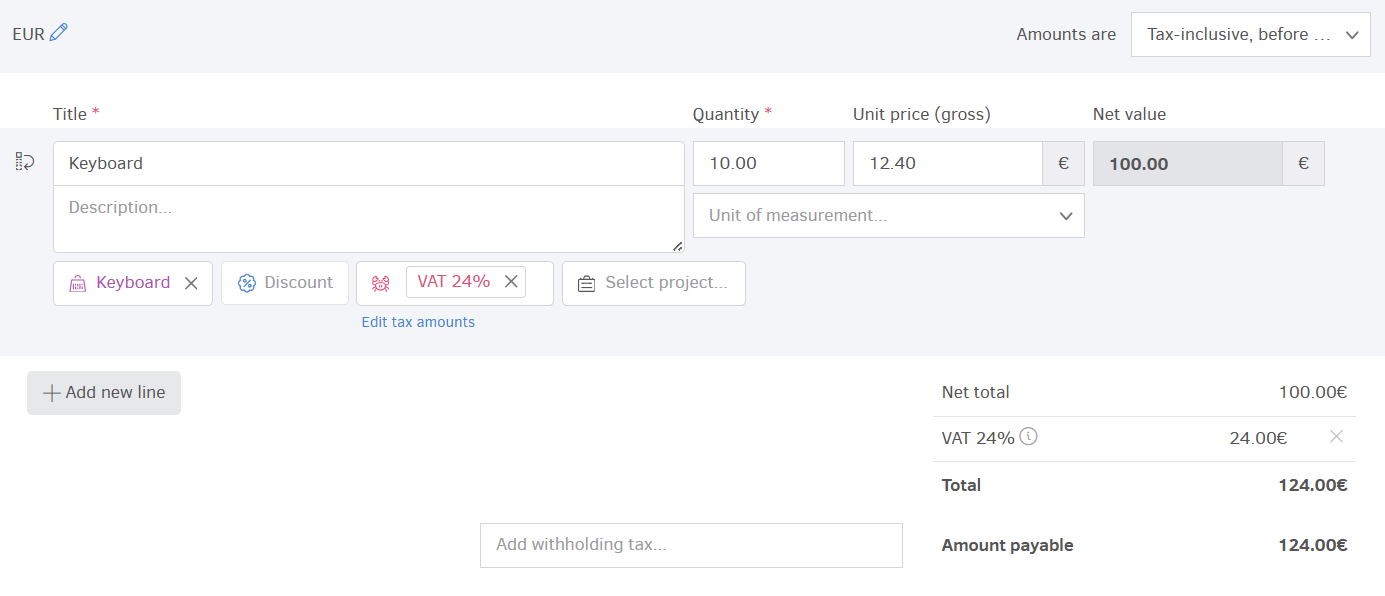
In the Unit price (gross) field, you need to enter the price of the product including 24% VAT, i.e. 12.40€.
With this data, Elorus automatically calculates the net unit price (i.e. the price per item excluding VAT) at 10€.
Net unit price: 12,40€ / 1,24 = 10€
Therefore, the Net value is calculated based on the net unit price times the quantity.
Net value: 10€ x 10 (quantity) = 100€
Tax: 100€ x 0,24 = 24€
Taking the above into consideration, the total is estimated at 124€.
Total: 100€ + 24€ = 124€
In the example above, we used the Tax inclusive, before discounts calculation mode. Had we used the Tax inclusive, after discounts option, we would notice that there would be no differences in the total (amount payable). This is due to the fact that, in this example, no discount has been defined in the corresponding field.
Calculating values as tax exclusive
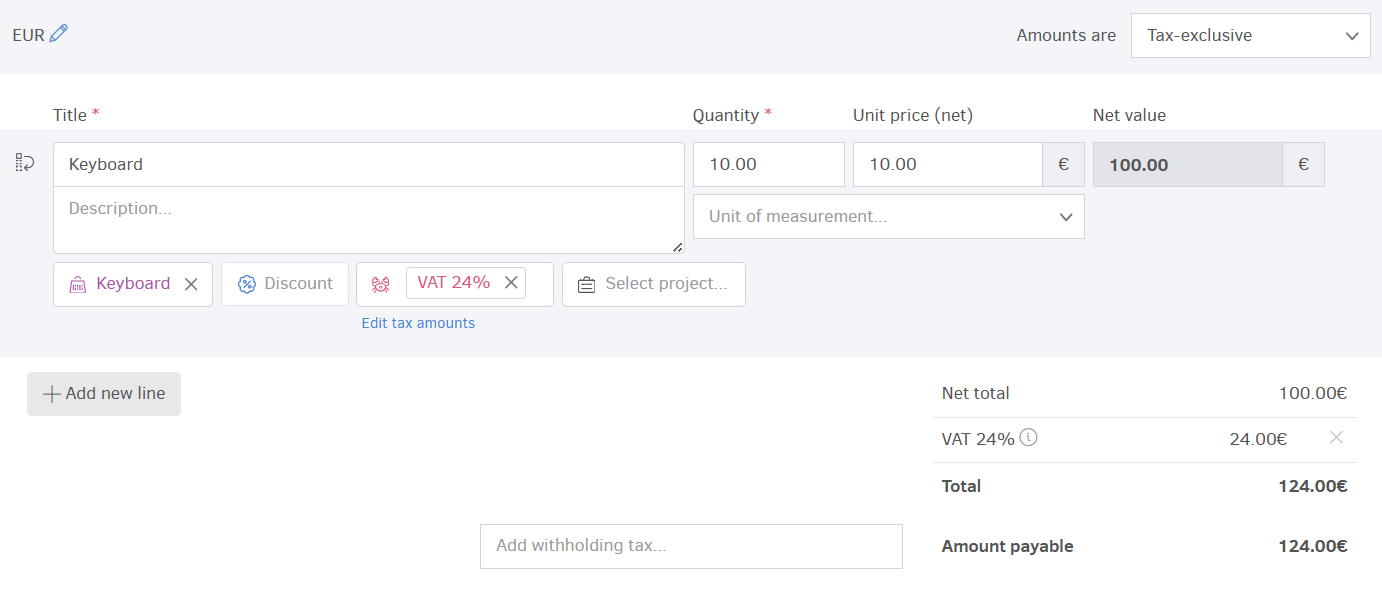
In the above scenario, calculations were made based on the gross value of the products/services. However, in some cases, we may only know the net price of the products/services.
Let's assume you want to calculate the values of the previous example, but based on the net price. After changing the way the values are calculated for the document from the Amounts are field, as we described earlier in the article, the new values of the document will be automatically calculated. The image below shows the new values, as they result from entering the net unit price.
Calculation examples involving discounts
The Amounts are field is particularly useful if you want to include a discount on the product line. Therefore, for the sake of this example we will keep the previous product values and add a discount of 10%.
Discounts are always calculated on the net unit price, i.e. per item.
Calculating values as Tax exclusive
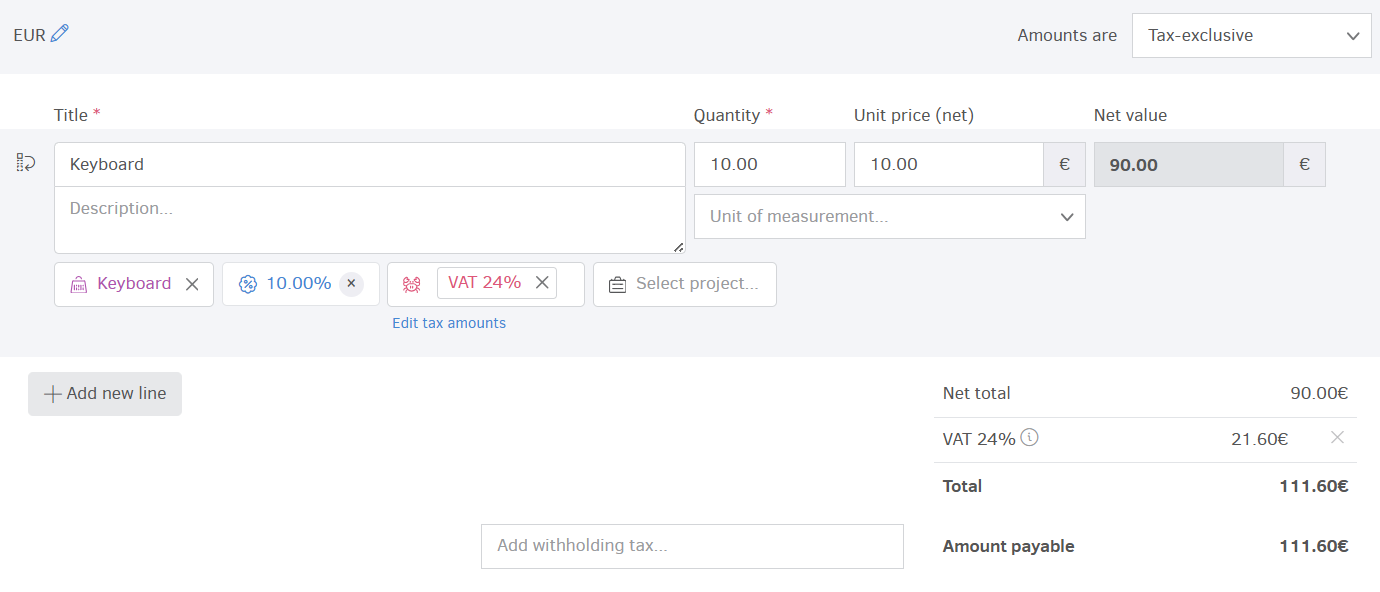
As with previous examples, let's assume that the net unit price (i.e. the price per item excluding VAT) is 10€. Since we decided to include a 10% discount, the net unit price after the discount is calculated at 9€.
Discount value per item: 10€ x 0,10 = 1€
Net unit price after applied discount: 10€ - 1€ = 9€
Therefore, the Net value is calculated based on the net unit price (after discount) times the quantity.
Net value: 9€ x 10 (quantity) = 90€
VAT value is now calculated based on the Νet value, as displayed below:
VAT: 90€ x 0,24 = 21,60€
Therefore, the total amount that the customer is required to pay is 111.60€.
90€ + 21,60€ = 111,60€
Calculating values as Tax inclusive, before discounts
Let's assume that you know the gross price of the product (net unit price + VAT) at 12.40€ and you want to include a 10% discount. After selecting The amounts are Tax inclusive, before discounts, you fill in the final unit price in the Unit price (gross) field.
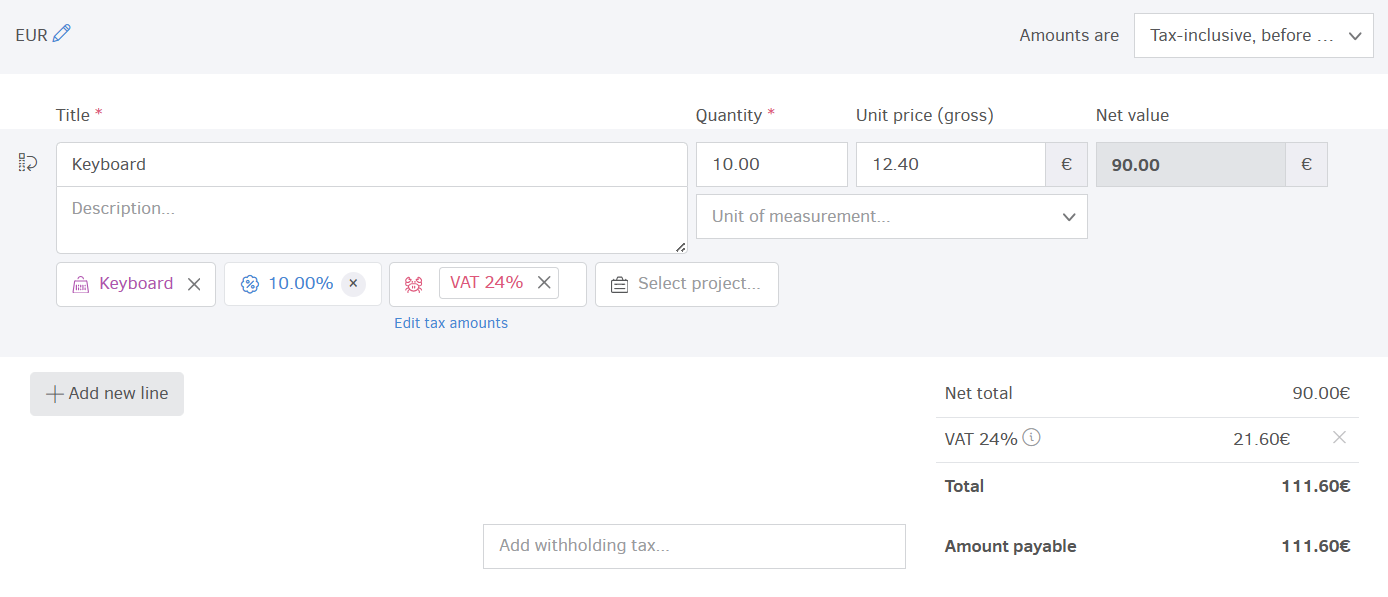
Elorus will automatically calculate the Net value at 90€.
Net unit price: 12,40€ / 1,24 = 10€
Discount value per item: 10€ x 0,10 = 1€
Net unit price after discount: 10€ - 1€ = 9€
Net value will then be calculated as follows:
Net value: 9€ x 10 (quantity) = 90€
The amount payable (including 24% VAT) amounts to 111,60€.
90€ + 21,60€ = 111,60€
Calculating values as Tax inclusive, after discounts
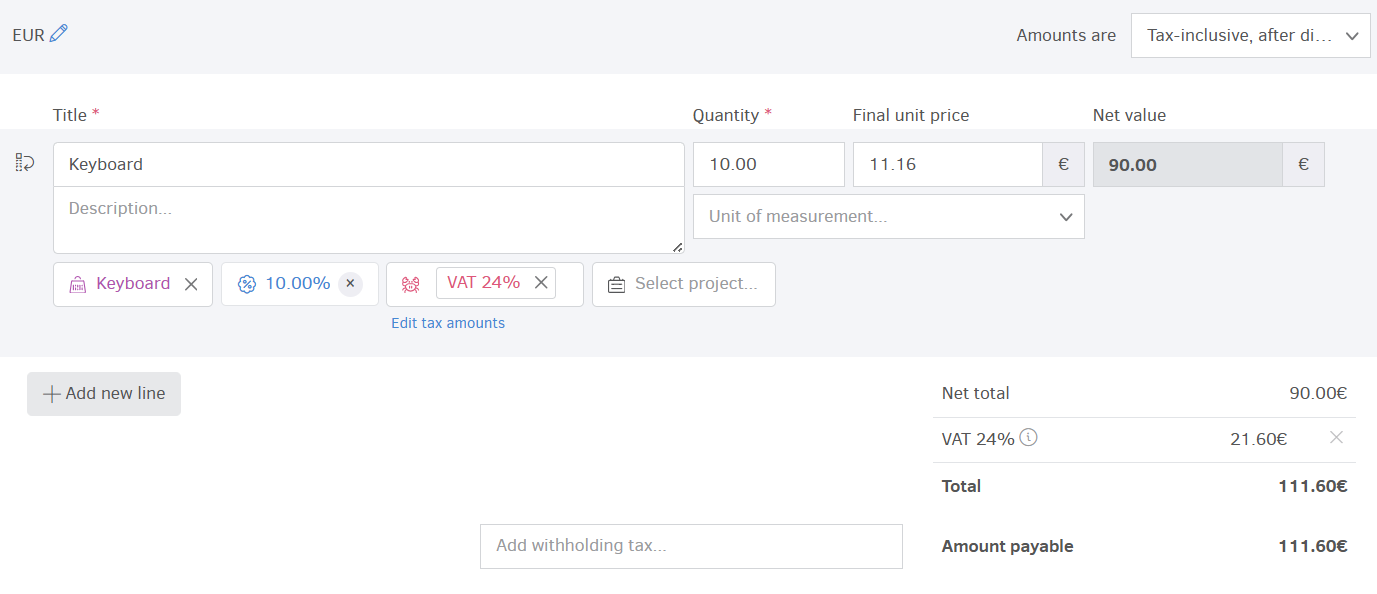
Suppose you know the final price of a product (11.16€), which already includes 24% VAT and a 10% discount.
After selecting The amounts are After taxes, after discounts, you fill in the final unit price in the Final unit price field. At this point it is necessary to select the line tax (VAT 24%) as well as the unit discount (10%).
Amounts are then automatically calculated by Elorus, as displayed below: